How to Convert TIFF to PDF (Without Losing Pages)
Multi-page TIFF scans routinely convert into a one-page PDF — including in Acrobat and macOS Preview. Here is why it happens, how to check before you send, and how to convert without uploading the file.
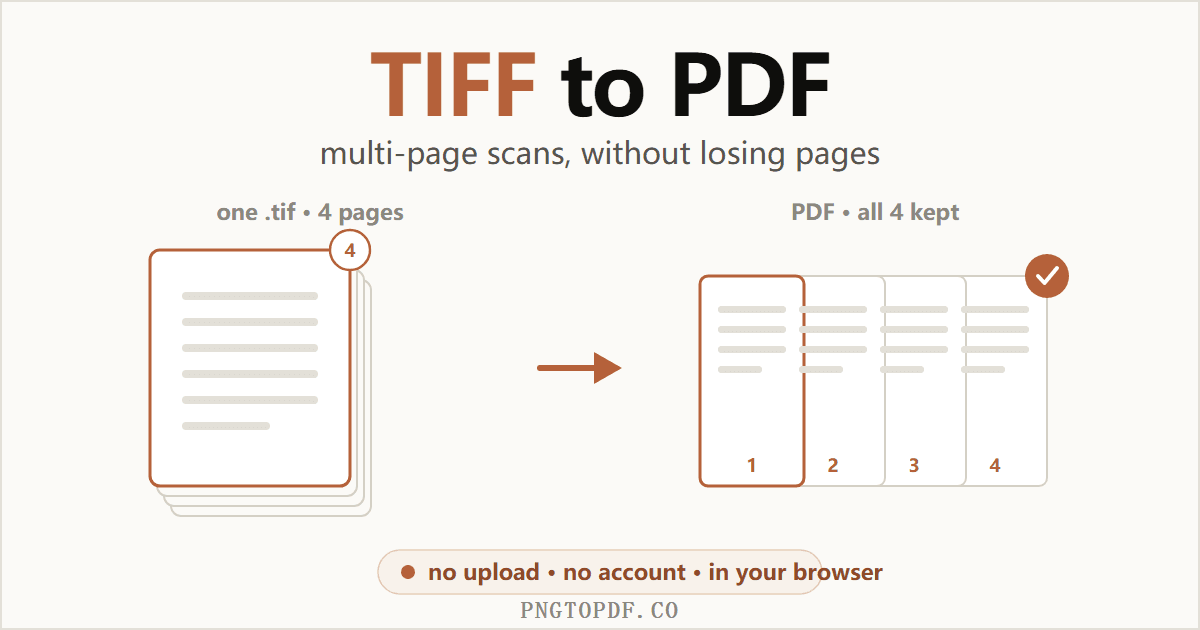
TIFF is the format scanners, fax gateways and records systems have used for decades. It stores every page of a document losslessly inside a single file, which is exactly what an archive wants — and exactly what makes it awkward the moment someone emails you one. Double-click a .tif and you get whatever image viewer your operating system happens to open, usually showing one page with no obvious way to scroll, print or share the rest.
Converting it to PDF fixes all of that. But there is a trap in this particular conversion that catches a remarkable number of people, including users of Adobe Acrobat and macOS Preview, and almost no guide warns you about it: your multi-page scan can quietly come out as a one-page PDF. This guide covers the conversion itself, how to avoid losing pages, what happens to file size, and why the text still will not be searchable afterwards.
Why convert TIFF to PDF?
The format is not the problem; the situation around it is. People convert because:
- Nobody can open it. Browsers do not display TIFF. Phones mostly do not either. A PDF opens everywhere, on anything, with no instructions attached.
- It is too big to send. Scans commonly run 10–50 MB per document. The same pages in a PDF are usually a fraction of that.
- The upload form rejects it. Government portals, insurance claims, job applications and court filing systems very often accept PDF and nothing else.
- You need it to behave like a document. Page numbers, ordering, merging with other files, signing — all of that is normal for a PDF and painful for a TIFF.
The multi-page trap nobody warns you about
This is the single most important thing to know before you convert, and it is the reason this guide exists. A multi-page TIFF stores its pages as a chain of image directories inside one file. Most image viewers read the first directory, display it, and stop. Your scan looks like a single page, so you have no reason to suspect otherwise — and then the converter does the same thing.
You end up with a one-page PDF of what was a twelve-page contract, and unless you happened to remember the page count, nothing about the result looks wrong. It is not a fringe bug either. Adobe's own community forums carry long-running threads about only the first page converting, macOS Preview has a documented habit of repeating page one instead of exporting the real pages, and the widely used img2pdf library had the same issue filed against it.
How to find out how many pages your TIFF really has
Windows Explorer and macOS Finder both show a TIFF as a single image with no page count, which is why this catches people. Two reliable ways to check: drop it into a converter that renders a thumbnail per page before converting, so you can simply count them, or run tiffinfo scan.tif from the open-source libtiff tools, which lists every directory in the file.
Convert TIFF to PDF in your browser
This is the fastest route, and the only one where the file stays on your computer. Nothing to install, no account, and multi-page scans are handled properly.
- 1Open the converter and add your TIFFGo to the TIFF to PDF converter and drag the file in. Both
.tifand.tiffwork, and you can add several files at once. - 2Check the page countEach page of the scan appears as its own thumbnail. This is your chance to catch the multi-page trap — if your twelve-page contract shows twelve thumbnails, everything will survive the conversion.
- 3Arrange and set page sizeDrag the thumbnails if you want a different order. Fit-to-page keeps the scan's proportions; a fixed A4 or Letter size is better if the PDF will be printed or submitted to a system that expects a standard page.
- 4Convert and downloadThe PDF is assembled in your browser and saved straight to your downloads folder. Nothing is transmitted, so there is no retention window to worry about and no copy to delete afterwards.
On Windows
Right-click the TIFF, choose Print, then pick Microsoft Print to PDF as the printer and print. You can select several files in Explorer first to bundle them together. Windows Photos will also open a multi-page TIFF, though its page navigation is easy to miss.
The caveat is control: you get whatever page size and margins the print dialog decides on, and no way to reorder pages. It is fine for a quick one-off, less so for a document you are submitting somewhere.
On a Mac
Open the file in Preview, then File → Export as PDF. Preview does understand multi-page TIFF and shows every page in its sidebar, so check the sidebar before exporting.
Other online converters
Plenty of services do this well. PDF24 explicitly states that each TIFF page becomes a PDF page, which is the behaviour you want. The trade-off is that it converts on its servers and deletes your file after an hour. Given that TIFFs are overwhelmingly scanned contracts, medical records and legal filings, an upload is worth a second thought — an in-browser converter avoids the question entirely.
Your PDF will almost certainly be smaller
This surprises people who expect conversion to add overhead. TIFF is typically stored uncompressed, or with a mild lossless scheme, because it was designed for archival fidelity rather than for sending anywhere. A single 300 dpi colour page uncompressed is over 25 MB of raw pixel data.
When those pages go into a PDF, the images are compressed on the way in. A 40 MB scan landing under 5 MB is completely normal, and the visible difference on a document page is usually nil. If the result is still too large for an email attachment, run it through a PDF compressor afterwards.
Worth noting that this is the reverse of the trip back: converting a PDF to TIFF makes files dramatically bigger, because it replaces compact text instructions with actual pixels.
The text still will not be searchable
This is the other thing worth being straight about. A TIFF from a scanner or a fax machine is a photograph of a page. There are no characters stored in it, only the pattern of dark and light pixels that happens to look like words to you. Wrapping that image in a PDF does not change what it is.
So after converting you still cannot search the document, select a sentence, or copy a paragraph out of it, and a screen reader cannot read it aloud. If you need any of that, you need OCR, which recognises the shapes and lays an invisible text layer over the image. The page looks exactly the same and suddenly Ctrl+F works.
Merging several TIFFs into one document
Scanners often produce one file per batch rather than one per document, so you end up with a handful of TIFFs that belong together. Add them all to the converter at once and keep the merge option on: each file contributes its pages, in the order you arrange the thumbnails, to a single PDF.
If some of those TIFFs are themselves multi-page, this is where page counts matter most — a converter that reads only first pages will silently drop most of the document while appearing to work. If you would rather assemble the pieces afterwards, convert each file separately and then merge the PDFs.
The short version
Converting TIFF to PDF is a thirty-second job, and the only thing that regularly goes wrong is losing pages you did not know were there. Check the page count before you send the file, expect it to get smaller rather than larger, and remember that the words in it are still pixels until you run OCR. Start with the free in-browser converter — it handles multi-page scans properly and the file never leaves your device.
Frequently asked questions
How do I convert a TIFF to PDF?
Open a TIFF-to-PDF converter in your browser, drop the file in, and download the result. With a client-side tool like pngtopdf.co/tiff-to-pdf the conversion happens on your own machine, so the scan is never uploaded. On Windows you can also use Photos → Print → “Microsoft Print to PDF”, and on a Mac, Preview → File → Export as PDF.
My TIFF has several pages but the PDF only has one. Why?
Because most image viewers show only the first page of a multi-page TIFF, and many converters read only that first page too. The other pages are still inside the TIFF — nothing was deleted. You need a converter that walks every image directory in the file. This is a long-standing complaint about Acrobat, macOS Preview and several libraries.
How do I know how many pages my TIFF actually has?
Your file manager will not tell you, and neither will most viewers. The simplest check is to drop it into a converter that reports a page count before converting — pngtopdf.co/tiff-to-pdf shows one thumbnail per page as soon as the file loads, so you can count them. On the command line, tiffinfo from libtiff lists every directory in the file.
Will the PDF be bigger or smaller than the TIFF?
Almost always smaller, often dramatically so. TIFF is usually stored uncompressed or with mild lossless compression, while the images inside a PDF get compressed on the way in. A 40 MB scan routinely lands under 5 MB. This is the opposite of converting a PDF to TIFF, which makes files much larger.
Can I search or copy the text after converting?
No, not by conversion alone. A TIFF from a scanner or fax is a picture of a page — there are no characters in it, only pixels. Putting it in a PDF does not create text. To make it searchable you need OCR, which reads the shapes and adds an invisible text layer over the image.
Is it safe to convert a TIFF to PDF online?
It depends entirely on the tool. Most online converters upload your file to a server and promise to delete it within an hour or a day. Since TIFFs are usually scanned contracts, medical records or legal filings, that matters. A converter that runs in your browser never transmits the file at all.
How do I combine several TIFF files into one PDF?
Add them all at once and keep the merge option on — each file becomes one or more pages of a single document, in the order you arrange them. If one of those TIFFs is itself multi-page, all of its pages should be preserved in sequence.
Why does my scanner produce TIFF instead of PDF in the first place?
TIFF was the document imaging standard long before PDF existed, and it is still the default output for many scanners, fax gateways and records systems. It stores every page losslessly in one file, which is exactly what archives want — it is just awkward to open and share.
What is the difference between .tif and .tiff?
Nothing. They are the same format with two spellings of the same extension, a leftover from the days when file extensions were limited to three characters. Any tool that handles one handles the other.
Can I go the other way and turn a PDF back into a TIFF?
Yes. Each PDF page gets rasterised into an image, and those images can be stored as one multi-page TIFF — which is what fax, court filing and archive systems usually require. Expect the file to grow considerably, because you are replacing text instructions with actual pixels.