How to Convert PDF to PNG (Free, No Upload) — 2026 Guide
Turn any PDF page into a crisp PNG — control the DPI, keep transparency where possible, and export every page at once. Free, on any device, nothing uploaded.
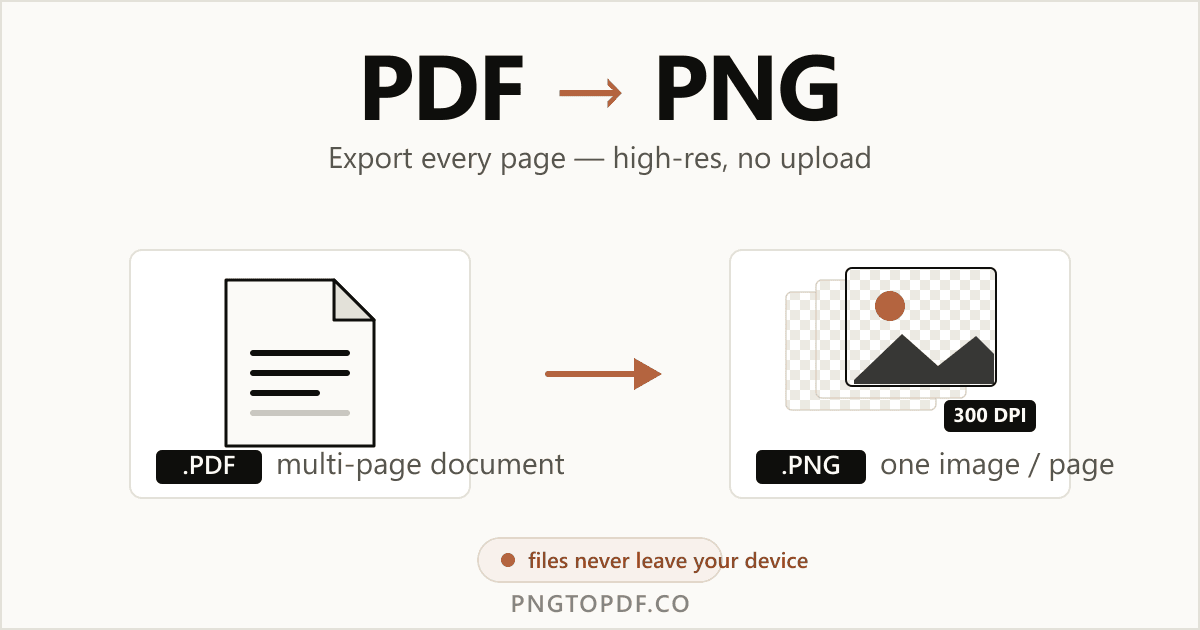
A PNG is a lossless image; a PDF is a document that can hold many pages. Turning a PDF into PNG means rasterizing each page into a sharp, standalone picture you can drop into a slide, post on social media, or pull a single figure from. The query "how to convert PDF to PNG" draws about 3,100 searches a month, and "save PDF as PNG" adds hundreds more.
This guide shows every reliable method in 2026 — the fastest in-browser route plus the built-in tools on Mac and Windows — and goes further than most: how to choose the right resolution, how to handle transparency, and how to export an entire multi-page PDF at once instead of one page at a time. All of it free, with nothing uploaded.
Why convert a PDF to PNG?
PDFs are great for sending and printing, but you cannot drop one into a slide deck or an Instagram post. Converting to PNG turns each page into a universal image:
- Embed a page anywhere. Slides, social posts, emails, and docs all accept a PNG; many will not embed a PDF cleanly.
- Pull one figure out of a report. Grab a single chart or page as an image without sharing the whole document.
- Create thumbnails and previews. A flat PNG renders instantly as a preview image on the web.
- Open it on any device. No PDF reader required — an image just works.
Convert PDF to PNG online (no upload)
The quickest method needs no software and no account. A client-side converter rasterizes your PDF inside the browser tab, so the file never leaves your device. Here is how it works with our free PDF to PNG converter:
- 1Open the converterGo to the PDF to PNG tool. No install, no signup.
- 2Add your PDFDrag the file onto the page, or click to browse.
- 3Choose a resolutionPick the DPI that matches your use — screen, web, or print (see below).
- 4Convert and downloadEach page becomes a PNG. Save them one by one, or all together as a ZIP.
Export every page of a multi-page PDF (as a ZIP)
This is the single most frustrating part of doing it natively: Apple's Preview, for example, only exports the page you are currently viewing, so a 20-page PDF means 20 manual saves. A dedicated converter avoids that entirely — it rasterizes every page in one pass and bundles the images into a single ZIP download. If you only need certain pages, you can also split the PDF first.
Choose the right resolution (72 / 150 / 300 DPI)
DPI (dots per inch) decides how sharp — and how large — your PNG is. There is no single right answer; it depends on where the image will be used:
Thumbnails, social posts, quick previews. Smallest file.
A safe default — crisp on screen, still light. Most people want this.
Sharp enough to print or run text recognition on. Largest file.
Prefer a tool you already have? Both Mac and Windows can save a PDF page as PNG without any download. Here is how.
How to save a PDF as PNG on Mac (Preview)
macOS has the export built into Preview, the default PDF viewer.
- 1Open the PDF in PreviewDouble-click the file; it opens in Preview by default.
- 2Choose File → ExportSet the Format dropdown to PNG.
- 3Set the ResolutionHigher is sharper; 150–300 DPI is typical.
- 4SavePick a name and location and click Save.
How to convert PDF to PNG on Windows
Windows has no native "Export as PNG" for PDFs, so you have two honest options. For a full, faithful page, the in-browser converter is simplest. For a quick crop of part of a page, the built-in Snipping Tool works:
- 1Open the PDFUse your browser or any PDF viewer and go to the page you want.
- 2Launch Snipping ToolPress Windows + Shift + S to start a screen capture.
- 3Select the areaDrag a box around the page or region you need.
- 4Save as PNGOpen the capture and save it with the .png extension.
Convert PDF to PNG on iPhone & Android
You do not need an app on either platform. Open pngtopdf.co/pdf-to-png in Safari or Chrome, add the PDF from Files or your downloads, and convert — the PNGs save straight to your device. In a pinch, a full-screen screenshot also captures a single page as an image.
PDF to PNG with a transparent background
This trips a lot of people up. Whether your PNG ends up transparent depends entirely on the PDF, not the converter.
If a PDF page has no background fill — for example, a logo or diagram exported on an empty page — a good converter can preserve that transparency in the PNG's alpha channel. But most documents, and every scanned page, sit on a solid white background. In those cases the PNG will be white where you might have hoped for transparency. The content is still exported losslessly; there simply is no transparent area to keep.
PDF to PNG vs PDF to JPG — which should you use?
Both turn a page into an image, but they make different trade-offs. PNG is lossless and supports transparency; JPG uses lossy compression for smaller photo files.
| PNG | JPG | |
|---|---|---|
| Compression | Lossless | Lossy |
| Text & sharp edges | Stays crisp | Can blur / show artifacts |
| Transparency | Yes | No |
| Best for | Text pages, charts, logos | Photo-heavy pages |
Rule of thumb: if the page has words or diagrams, choose PNG. For a deeper look at how the formats differ, see our PNG vs PDF guide.
Is it safe to convert a PDF to PNG online?
It depends entirely on the tool. Most popular converters upload your PDF to a server and promise to delete it "within an hour." That is fine for a flyer, but risky for a bank statement, an ID, or a signed contract — the exact documents people most often need as images.
A client-side converter like pngtopdf.co does the rasterizing inside your browser, so the PDF is never transmitted anywhere. Two quick ways to tell which kind you are using: a local tool converts almost instantly with no "uploading…" bar, and it keeps working even if you turn your connection off mid-task. If you have to wait for an upload, your file is leaving your device.
Troubleshooting common problems
A few issues come up again and again when people convert PDFs to images. Here is how to fix the most common ones:
- Only the first page exported. This is Preview's default behavior — it saves the page you are viewing, not the whole file. Use a converter that processes every page, or the Shortcuts "Split PDF into Images" action.
- The PNG looks blurry. You exported at too low a DPI. Bump it to 300 for print-quality text and edges, then re-export.
- The background is white, not transparent. The PDF page has a solid background (most do, and all scans do). There is no transparency to keep — see the section above.
- The file is huge. High DPI on a many-page PDF produces large PNGs. Drop to 150 DPI for sharing, or compress the PDF first if you only need a smaller document.
Frequently asked questions
How do I convert a PDF to PNG for free?
Open a browser-based converter such as the PDF to PNG tool on pngtopdf.co, add your PDF, and download each page as a PNG. It is free, has no watermark, and on a client-side tool the file never leaves your device — useful for sensitive documents.
How do I save a PDF as a PNG on Mac?
Open the PDF in Preview, choose File then Export, set Format to PNG and pick a Resolution, then Save. Preview only exports the page you are viewing, so for a multi-page PDF use the Shortcuts "Split PDF into Images" action or a browser tool that exports every page at once.
How do I convert a multi-page PDF to PNG?
Use a tool that rasterizes every page and lets you download them together. On pngtopdf.co each page becomes its own PNG and you can grab them all as a single ZIP — no need to export pages one by one.
How do I convert a PDF to PNG without losing quality?
Export at a higher DPI. 72 DPI suits on-screen use, 150 DPI is a good general default, and 300 DPI is best for printing or OCR. PNG is lossless, so at a sufficient resolution the result stays sharp.
What DPI should I use for PDF to PNG?
Use 72 DPI for web and screen, 150 DPI for general sharing, and 300 DPI for print or text recognition. Higher DPI means a larger file and crisper text; for a quick social-media image, 150 DPI is usually enough.
Can I convert a PDF to PNG with a transparent background?
Only if the PDF page itself has no background fill. Most documents and all scanned pages have a solid white background, so the PNG will be white where you might expect transparency. The page content is still exported losslessly.
Is it safe to convert a PDF to PNG online?
It depends on the tool. Server-based converters upload your file; a client-side tool like pngtopdf.co processes it entirely in your browser, so nothing is sent anywhere — the safe choice for bank statements, IDs, and contracts.
Should I convert PDF to PNG or JPG?
Choose PNG for pages with text, line art, or sharp edges — it is lossless and stays crisp. Choose JPG for photo-heavy pages where a smaller file matters more than perfect edges.
The bottom line
Converting a PDF to PNG is quick, free, and — with the right tool — completely private. For one page or a whole document, the easiest route is an in-browser converter that exports every page at the DPI you choose and keeps your files on your own device. Preview and Snipping Tool are useful backups when you only need a single page and are already looking at it.
Ready to try it? Convert PDF to PNG now — free, high-resolution, no upload. Need the reverse? Convert PNG to PDF works the same way.