How to Make a Smaller PDF from Images (Compress First)
A PDF built from photos is only as small as the photos inside it. Here is the two-step fix: compress the images first, then convert — for a PDF small enough to email.
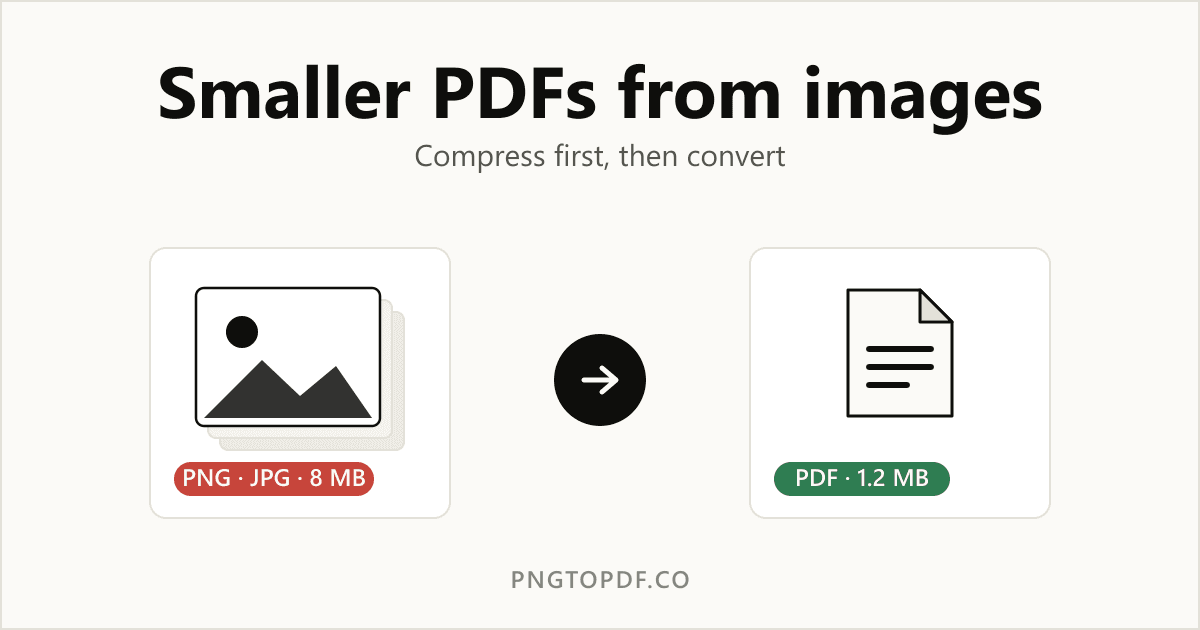
You drag a handful of photos into a converter, get a PDF back — and it's 25 MB, too big to email. The culprit almost always isn't the PDF format itself; it's the images inside it. A PDF built from pictures is roughly as heavy as the pictures you fed it. So the single most effective way to get a small, shareable PDF is to compress the images first, then convert. Here's exactly how, and why it works.
Why image-based PDFs get so big
When you turn PNGs or JPGs into a PDF, the converter places each image onto a page. It doesn't magically shrink them — a 6-megapixel phone photo that's 5 MB on disk is still roughly 5 MB once it's sitting inside the PDF. Stack ten of those together and your "document" balloons past 50 MB. Two things drive that weight:
- Resolution — far more pixels than a screen or printer can actually show.
- Encoding — PNG is lossless, so photographic PNGs are especially heavy; an uncompressed image carries detail nobody will ever see.
Fix the images and you fix the PDF. Shrinking each picture before it ever reaches the converter is the difference between a 25 MB attachment and a 1–2 MB one.
The fix: compress first, then convert
Two quick steps, both free and both running entirely in your browser — your files never get uploaded to a server.
Step 1: Compress your images
Run your photos through an image compressor before converting. A tool like TinyImagePro's image compressor shrinks JPG, PNG, WebP, and AVIF files right in the browser, with a quality slider so you can trade a sliver of detail for a much smaller file. Around 80% quality is the sweet spot: visually almost identical, often a fraction of the original size. It processes everything locally, so — just like the converter you're about to use — nothing leaves your device.
Step 2: Convert the compressed images to PDF
Now feed the smaller images into a converter. Use our PNG to PDF converter for screenshots and graphics, or the JPG to PDF converter for photos. Because the images are already lean, the resulting PDF is too — same pages, same readable content, a fraction of the megabytes.
Already have a big PDF?
If the oversized PDF already exists and you don't have the original images handy, you can squeeze it directly with our PDF compressor. It re-compresses the images embedded in the document, which is the next best thing to shrinking them beforehand. For the smallest possible result, though, compressing the images up front still wins.
Tips for the smallest PDF
- Match resolution to purpose. For on-screen reading, images rarely need to be wider than ~1500–2000 px. Print needs more; email rarely does.
- Use JPG for photos, PNG for graphics. Photos compress far smaller as JPG; keep PNG for logos, screenshots, and anything with sharp edges or transparency.
- Compress once, not twice. Re-compressing an already-compressed image just adds artifacts without saving much. Start from the original.
- Mind the quality slider. 80% is a safe default; drop lower only when file size matters more than fine detail.
Frequently asked questions
Does compressing images hurt the PDF's quality?
A little, by design — but usually far less than you'd notice. At around 80% quality the difference is invisible on screen while the file shrinks dramatically. You stay in control of the trade-off with the quality slider.
Should I compress images or compress the PDF?
Compressing the images before converting gives the smallest, cleanest result, because you control each image directly. Compressing the finished PDF is the better option when you no longer have the source images. Either way, the images are what you're really shrinking.
Is any of this uploaded to a server?
No. Both the image compression and the PDF conversion described here run in your browser, so your photos and documents stay on your own device.
What image format makes the smallest PDF?
For photographs, compressed JPGs almost always produce a smaller PDF than PNGs. For flat graphics, logos, or screenshots with few colors, PNG stays sharp and compact. Pick the format that fits the image, then compress it.
The bottom line
A heavy PDF is almost always a pile of heavy images in disguise. Shrink the pictures first with an image compressor, then run them through our PNG to PDF or JPG to PDF tool — and if a big PDF already exists, finish the job with the PDF compressor. Compress first, convert second, and your documents stay small enough to send.