How to Merge PDF Files Free Without Acrobat — 2026
Combine PDFs into one ordered file — free, on any device, with nothing uploaded and no account. Plus Mac, Windows 11, and phone methods.
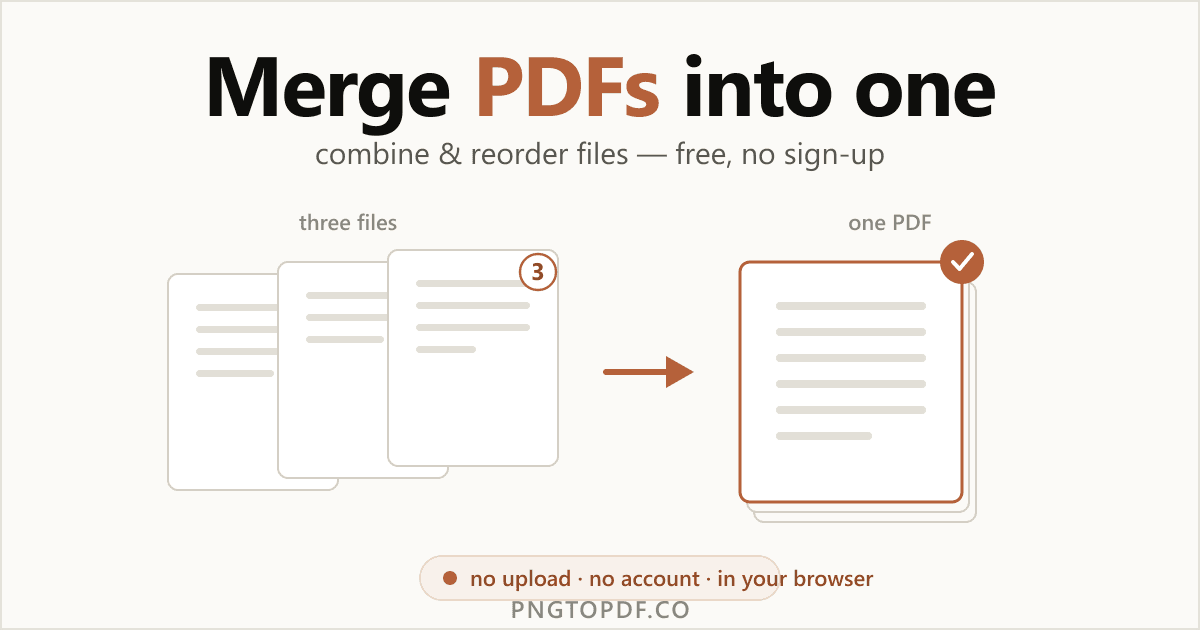
Merging a PDF means combining two or more files into a single, ordered document — stitching report chapters together, putting a cover page in front of a scan, or bundling invoices, receipts, and a contract into one file to email. It's one of the most common PDF jobs, and one Adobe makes you sign in for after a couple of free tries. You don't need an Acrobat subscription, or even an account, to do it.
This guide covers every method that works in 2026 — the fastest in-browser route (free, no sign-up, with nothing uploaded), plus the built-in options on Mac, Windows 11, iPhone, and Android. You'll also learn exactly what merging does to your file's quality and size, and how to tell which online tools are actually safe for sensitive documents.
Why merge PDFs?
Merging is about turning several files into one tidy document. The common reasons:
- One file to send. Combine a cover letter, résumé, and portfolio into a single attachment instead of three.
- Rebuild a split document. Stitch scanned chapters or a document that arrived in parts back into one PDF.
- Bundle paperwork. Merge invoices, receipts, and statements for an expense report or a tax filing.
- Assemble a packet. Put a contract and its appendices, or an application and its supporting documents, in the right order.
- Archive a project. Collapse a folder of related PDFs into one searchable file.
Need the opposite — pulling one big PDF apart? That's a different job: see how to split a PDF.
The easiest way: merge PDFs online (no sign-up)
The fastest method needs no software and no account. A client-side merger does everything inside your browser tab, so your documents never leave your computer. Here is how it works with our free PDF merger:
- 1Open the mergerGo to pngtopdf.co/pdf-merge. Nothing to install, no account to create.
- 2Add your PDFsDrag the files onto the page, or click to browse. They load instantly and stay on your device.
- 3Drag them into orderUse the drag handles to set the sequence — the order in the list is the order in the final file.
- 4Merge and downloadClick Merge PDFs and download the single combined document. No watermark, no sign-up.
Reorder files before you merge
Order is everything when you merge. Grab a file's drag handle and move it up or down so the cover leads and the appendix trails — the list order becomes the page order in the finished PDF. Get it right before merging and you won't need to reshuffle pages afterward.
Reorder or merge specific pages
Need finer control than whole files? After merging, open the result in a page organizer to drag individual pages around, rotate them, or drop the ones you don't need. Our PDF organizer does exactly that, and you can delete pages in the same local-only way.
Is it safe to merge PDFs online?
It depends entirely on the tool. Almost every popular online merger uploads your files to a server, merges them there, and deletes them a few hours later — Smallpdf within about an hour, iLovePDF and Sejda within two, Soda PDF within a day. That window is fine for a flyer, but it's a real consideration for bank statements, tax forms, contracts, or IDs.
A client-side merger runs entirely in your browser, so the files are never transmitted: nothing to intercept, no account, and it even works offline once the page has loaded. A quick way to tell: a client-side tool merges almost instantly and keeps working with your connection switched off.
| Method | Files uploaded? | Account? | Watermark or cap? |
|---|---|---|---|
| In-browser, local (our tool) | No — stays on device | No | No — up to 50 files |
| Cloud merger (Smallpdf, iLovePDF) | Yes | Free tier, then Premium | Daily/feature caps |
| Adobe online | Yes | Sign-in required | 100 files / 1,500 pages |
How to merge PDFs on Mac, Windows, and your phone
Prefer to use what's already on your device? Here are the built-in routes — and where each one falls short.
Mac: Preview
- 1Open the first PDF in PreviewDouble-click it; Preview is the default viewer.
- 2Show the thumbnail sidebarChoose View → Thumbnails so you can see every page.
- 3Drag in the second PDFDrag another PDF file into the sidebar to append its pages, then reorder by dragging thumbnails.
- 4Export the combined fileUse File → Export to save a new merged PDF and keep your originals.
Preview is handy and fully offline, but it's fiddly: dropping a file in the wrong spot can split it, large documents get sluggish, and there's no clean way to merge only selected pages.
Windows 11
Windows 11 has no built-in PDF combiner, and the advice to "use Microsoft Print to PDF" is a trap here: Print to PDF re-prints one file at a time, so it can't actually merge separate PDFs into a single document, and printing can flatten clickable links and bookmarks. For a real, lossless merge on Windows, an in-browser merger is the simplest free option — no install, no Adobe.
iPhone & Android
On iPhone, the Files app can combine PDFs: tap Select, choose the files, long-press, and pick "Create PDF" (or use the Markup menu to append). On Android there is no native merge, so the easiest route is to open a browser-based merger right in Chrome. Because a client-side tool processes locally, mobile merging is just as private as on desktop — the files never leave the phone.
Will merging reduce quality? (and merging images too)
Merging is lossless. A merger copies each page into a new document without re-encoding the text or images, so the result is exactly as sharp as the originals and the fonts are preserved. Here's the one thing to expect: the merged file's size is roughly the sum of the inputs, so combining several large scans makes a large PDF.
- Merged file too big? Don't lower quality before merging — compress the PDF afterward instead.
- Want to include photos? Convert them first with JPG to PDF, then merge the resulting pages with your other PDFs.
Free vs paid: the limits nobody mentions
"Free" rarely means unlimited. Most mainstream mergers gate the good parts behind a sign-in or a subscription, and the caps are easy to miss until you hit one:
| Tool | Free limit | Account? |
|---|---|---|
| pngtopdf.co | Up to 50 files, no watermark, no daily cap | No |
| Adobe online | ~2 merges, then sign-in; 100 files / 1,500 pages | Yes |
| Xodo (free online) | 2 files per day | For more |
| Sejda | 50 pages / 50 MB, 3 tasks per hour | For more |
We state our limit plainly: up to 50 PDFs per batch, no account, no watermark. And because the merge runs in your browser rather than on a server, the practical ceiling is your device's memory, not someone's paid quota.
Frequently asked questions
How do I merge PDF files into one document for free?
Open a free in-browser merger like pngtopdf.co’s /pdf-merge, add two or more PDFs, drag them into the order you want, and click Merge. You get one combined PDF — no Acrobat, no account, and with a client-side tool nothing is ever uploaded.
How do I combine PDF files without Adobe Acrobat?
You don’t need Acrobat at all. A browser-based merger combines PDFs with no install and no sign-in, Mac Preview merges files natively, and you can even merge on a phone. Acrobat makes you sign in after about two free merges; the in-browser route has no such gate.
Is it safe to merge PDFs online — do my files get uploaded?
It depends entirely on the tool. Most online mergers upload your files to a server and delete them hours later (Smallpdf ~1h, iLovePDF/Sejda ~2h, Soda PDF ~24h). A client-side merger like pngtopdf.co processes everything in your browser, so the files are never transmitted — the safest choice for bank statements, tax forms, or contracts.
How do I combine PDFs on a Mac using Preview?
Open the first PDF in Preview, show the thumbnail sidebar (View → Thumbnails), then drag a second PDF file into the sidebar to append its pages. Reorder by dragging thumbnails, then File → Export to save the combined PDF. Preview is offline but handles only whole files well and can be fiddly with large documents.
How do I merge PDF files on Windows 11 without extra software?
Windows 11 has no built-in PDF combiner. The common workaround — “Print to PDF” one file at a time — can’t actually merge separate PDFs into one and may flatten links and bookmarks. The reliable free route is an in-browser merger, which combines files losslessly with no install.
How do I merge PDF files on iPhone or Android?
On iPhone, the Files app can combine PDFs: select them, long-press, and choose “Create PDF” or use the Markup menu. On Android there’s no native merge, so open a browser-based merger in Chrome. A client-side tool works the same on mobile — files stay on the phone and nothing uploads.
Can I reorder files, or merge only specific pages?
Yes. A good merger lets you drag files into any order before combining, so a cover page leads and an appendix trails. Page-level tools go further and let you merge only chosen pages from each PDF. To rearrange after merging, use a page organizer like pngtopdf.co/pdf-organize.
Does merging reduce a PDF’s quality?
No. Merging copies each page into a new document without re-encoding text or images, so quality is identical to the originals and fonts are preserved. It is lossless. The merged file’s size is roughly the sum of the inputs; if that’s too big, compress it afterward.
Can I merge PDFs and images (JPG/PNG) into one file?
Not directly in most PDF mergers — convert the images to PDF first, then merge. pngtopdf.co’s /jpg-to-pdf turns JPG or PNG photos into PDF pages, which you can then combine with your other PDFs into a single document.
Is there a file-size or count limit, and do I need to sign up?
On pngtopdf.co you can merge up to 50 PDFs per batch with no account, no watermark, and no daily cap. By contrast Adobe requires sign-in and caps at 100 files / 1,500 pages, and Xodo’s free online tier allows just 2 files a day. Because our merge runs in your browser, the practical size limit is your device’s memory, not a server quota.
The bottom line
Merging PDFs is quick, free, and doesn't need Acrobat or an account. The fastest route is an in-browser merger: add your files, drag them into order, and download one combined PDF — losslessly, with the documents kept entirely on your own device. Mac's Preview works offline for simple jobs, but Windows has no real built-in option, which makes the browser tool the easiest free choice on every platform.
Ready to try it? Merge your PDFs now — free, private, no upload. Need something else? Learn how to split a PDF or compress one instead.