How to Extract Pages from a PDF Without Acrobat (Free) — 2026
Pull one page or a custom range out of any PDF — free, on any device, with nothing uploaded. The original stays untouched.
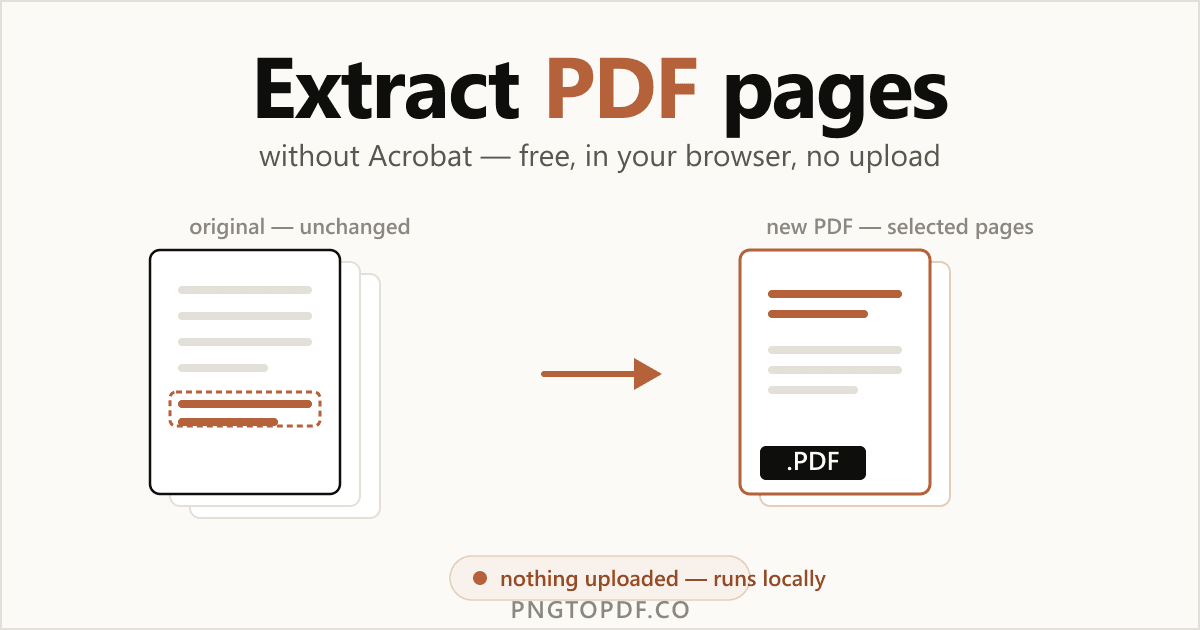
You don't need a $19.99/month Acrobat subscription to pull a few pages out of a PDF. Extracting pages simply copies the pages you choose into a brand-new file — and the original document is never touched. It is one of the most common PDF tasks there is: sending only the relevant pages of a contract, filing a single receipt, or saving one page to email on its own.
This guide shows you every method that actually works in 2026 — the fastest in-browser route (free, with nothing uploaded), the built-in Print-to-PDF trick on Windows and Mac, and how to select a single page or a custom range like 1,3,5-8. You will also learn the difference between extracting, splitting, and deleting pages, so you pick the right one the first time.
Why extract pages from a PDF?
Extracting is about keeping the few pages that matter and leaving the rest behind. The common reasons:
- Send only the relevant pages. Share pages 4–6 of a contract instead of the whole 40-page file.
- File a single receipt or invoice. Pull one page out of a bank statement to archive on its own.
- Share one chapter or section. Lift a single chapter from a long report or textbook.
- Save one page to email. Turn page 1 into a standalone, one-page PDF attachment.
- Separate each page for archiving. Export every selected page as its own file in one go.
Want to do the opposite — keep the document but drop a few unwanted pages? That is a job for delete pages instead.
Extract vs split vs delete: which do you want?
These three get mixed up constantly, and choosing the wrong one wastes time. Here is the plain distinction:
- Extract — copy the pages you choose into a new PDF. The original is untouched. Best when you want to keep a few pages.
- Split — divide one PDF into several files, usually by range or every N pages. Best for breaking a big document into parts. See split a PDF into multiple files.
- Delete — remove unwanted pages from the document itself. Best when you want to keep almost everything.
| Action | What it does | Original changed? | Output |
|---|---|---|---|
| Extract | Copies chosen pages | No | A new PDF (or separate files) |
| Split | Divides into parts | No | Several PDFs |
| Delete | Removes pages | Yes (a new, smaller PDF) | One PDF, fewer pages |
The easiest way: extract pages online (no upload)
The fastest method needs no software and no account. A client-side extractor does everything inside your browser tab, so your document never leaves your computer. Here is how it looks and works with our free PDF page extractor:
- 1Open the extractorGo to pngtopdf.co/extract-pdf-pages. Nothing to install, nothing to sign up for.
- 2Add your PDFDrag the file onto the page, or click to browse. It loads instantly and stays on your device.
- 3Select the pages you wantClick the page thumbnails, or type a range like 1,3,5-8 in the page box. The two stay in sync.
- 4Choose output and downloadPick one merged PDF or each page as a separate file (ZIP), then download. The original is left untouched.
Selecting pages with a range like 1,3,5-8
Clicking thumbnails is fine for a couple of pages, but a range box is far faster for anything bigger. The notation is simple: commas separate individual pages and hyphens mark a span. So 1,3,5-8 selects pages 1, 3, 5, 6, 7, and 8. Edit the box and the thumbnails update; click thumbnails and the box updates — whichever is quicker for you.
One merged PDF vs separate files
Extracting offers two outputs, and the right one depends on what you will do next:
- One merged PDF keeps all your chosen pages together in a single new document — ideal for sending a handful of contract pages as one attachment.
- Separate files save each selected page as its own PDF, bundled together in a ZIP — exactly what people mean when they search for "extract pages to separate files."
How to save one page of a PDF for free (built-in methods)
Prefer not to use an online tool at all? Both Windows and Mac can save a single page — or a range — using their built-in "print to PDF" feature. It is genuinely handy for one quick page, with one caveat worth knowing.
Windows: Microsoft Print to PDF
Windows 10 and 11 include a virtual printer that writes a PDF instead of paper.
- 1Open the PDF and press Ctrl+PUse any PDF viewer, including your browser or Edge.
- 2Choose "Microsoft Print to PDF"Select it from the printer dropdown.
- 3Enter the page(s) to keepType a single page like 3, or a range like 1-5,8 in the Pages box.
- 4Print and saveClick Print, then choose a name and location for the new PDF.
Mac: Preview
macOS has two built-in routes, both free and offline.
- 1Open the PDF in PreviewDouble-click the file; Preview is the default viewer.
- 2Press Cmd+PIn the Pages field, enter the page or range you want, e.g. 2,5,7-9.
- 3Save as PDFClick the PDF dropdown at the bottom-left and choose "Save as PDF".
- 4Or use the thumbnail sidebarCmd-click pages in the sidebar, Edit → Copy, then File → New from Clipboard and save.
Is it safe to extract PDF pages online?
It depends entirely on the tool. A contract page, a bank statement, or an ID is among the most sensitive files you handle — so where it goes matters.
Most online extractors upload your file to a server, process it in the cloud, and promise to delete it "within an hour." A client-side extractor is different: it runs entirely in your browser, so the file is never transmitted. Nothing to intercept, nothing cached on someone else's server. A quick way to tell them apart: a client-side tool works almost instantly with no "uploading…" bar, and it keeps working even if you switch your connection off.
| Method | File uploaded? | Works offline? | Original changed? |
|---|---|---|---|
| In-browser, local (our tool) | No — stays on device | Yes | No |
| Cloud extractor | Yes | No | No |
| Adobe online | Yes | No | No |
| Print to PDF | No | Yes | No |
Once you have your extracted pages, you can protect it with a password before emailing — also done locally, in your browser.
Troubleshooting: why can't I extract pages?
If extraction is not working, it is usually one of these:
- The PDF is password-protected. You will need to unlock it first using the correct password, then extract pages normally.
- It is a scanned image PDF. Good news — pages still extract fine, because you are copying whole pages, not text.
- A huge file ran the tab out of memory. Close other tabs and try again, or use a desktop method for very large documents.
Frequently asked questions
How do I extract pages from a PDF without Acrobat?
Use a free in-browser extractor like pngtopdf.co’s extract tool: add the PDF, click the page thumbnails you want or type a range like 1,3,5-8, then download a new PDF. There is no Acrobat and no signup — and on a client-side tool the file is never uploaded.
How do I save one page of a PDF as a separate file?
Open the PDF in a free extractor, select just that page, and export — it becomes a new one-page PDF and your original is untouched. On Windows you can also press Ctrl+P, choose “Microsoft Print to PDF”, enter the single page number, and save.
Does extracting pages change the original PDF?
No. Extracting copies your selected pages into a new file; the original PDF stays exactly as it was. This is the key difference from deleting pages, which removes them from the document itself.
What’s the difference between extracting and splitting a PDF?
Extracting pulls specific pages you choose into one new PDF. Splitting divides a PDF into multiple files, usually by range or every N pages. Use extract to keep a few pages; use split to break a big document into parts.
Can I extract pages into separate files instead of one PDF?
Yes. A good extractor offers two output modes: merge the selected pages into a single PDF, or save each page as its own PDF, bundled together in a ZIP. pngtopdf.co’s extractor supports both.
How do I extract a range of pages like 1, 3 and 5–8?
Type the range into the page box: commas separate individual pages and hyphens mark a span, so 1,3,5-8 selects pages 1, 3, 5, 6, 7 and 8. The thumbnail grid and the range box stay in sync as you edit either one.
Is it safe to extract pages from a PDF online?
It depends on the tool. Most upload your file to a server; a client-side tool like pngtopdf.co processes everything in your browser, so the document never leaves your device — safer for contracts and IDs. A quick test: local tools keep working even with your connection switched off.
Can I extract pages from a password-protected PDF?
Not directly — you need to remove the password first using the correct password, then extract pages normally. Scanned image PDFs, on the other hand, extract fine because you are copying whole pages, not text.
The bottom line
Extracting pages from a PDF is quick, free, and does not require Acrobat. The key thing to remember: extracting copies your chosen pages into a new file and leaves the original untouched. For a single page or a custom range, the fastest route is a free in-browser extractor that keeps your document entirely on your own device.
Ready to try it? Extract pages now — free, private, and no upload. Need something else? Learn how to split a PDF or delete pages instead.